How to get correct text in AI-generated images
AI image models can draw convincing lettering, but they still misspell words, add stray characters and sometimes print part of your instructions. Here is what that looks like in a real test, how to word a prompt to make it less likely, and when it is better to add the words yourself.
What goes wrong: one prompt, three posters
We asked three models for the same exhibition poster, with exactly three lines of text: “FORM & LIGHT”, “A DESIGN EXHIBITION” and “18 OCTOBER”. Each model made one image, and we kept it unedited.
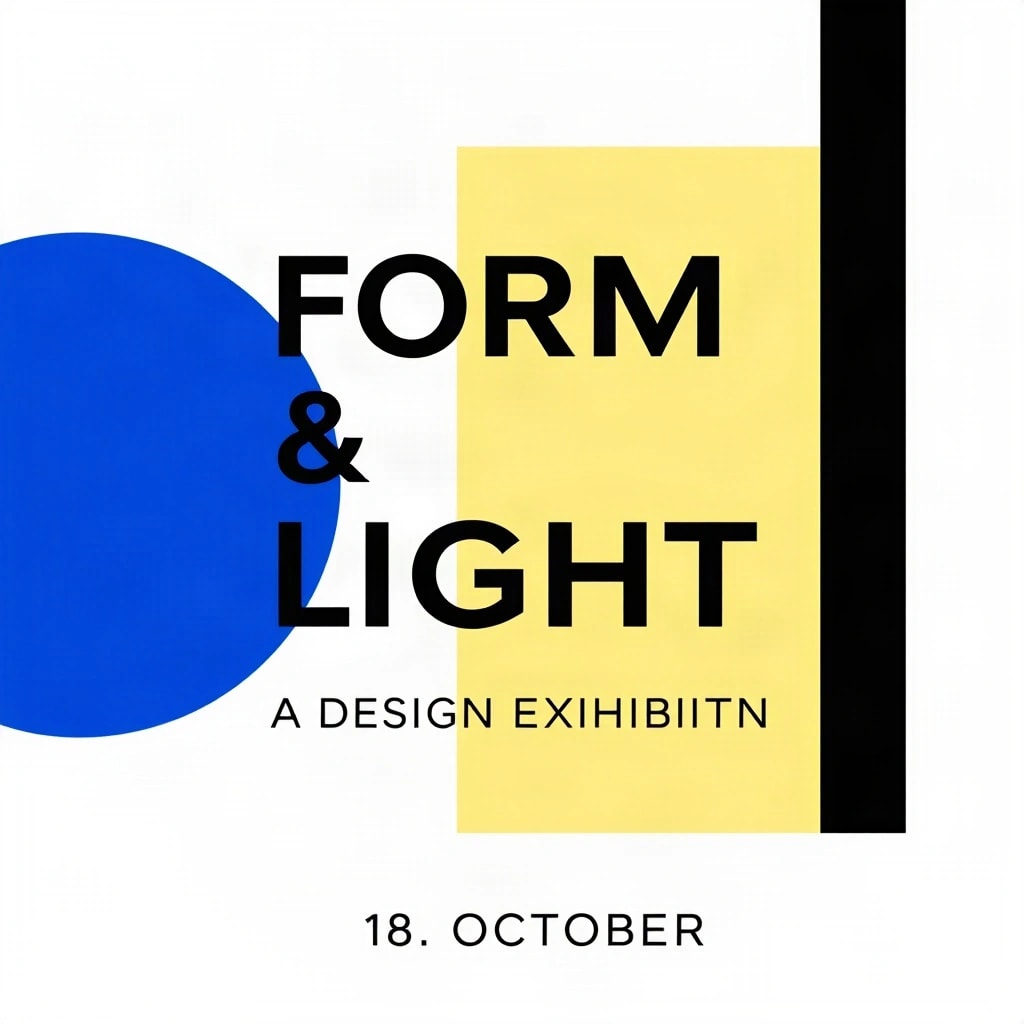
FLUX SchnellOriginal (JPEG, 1024 × 1024)
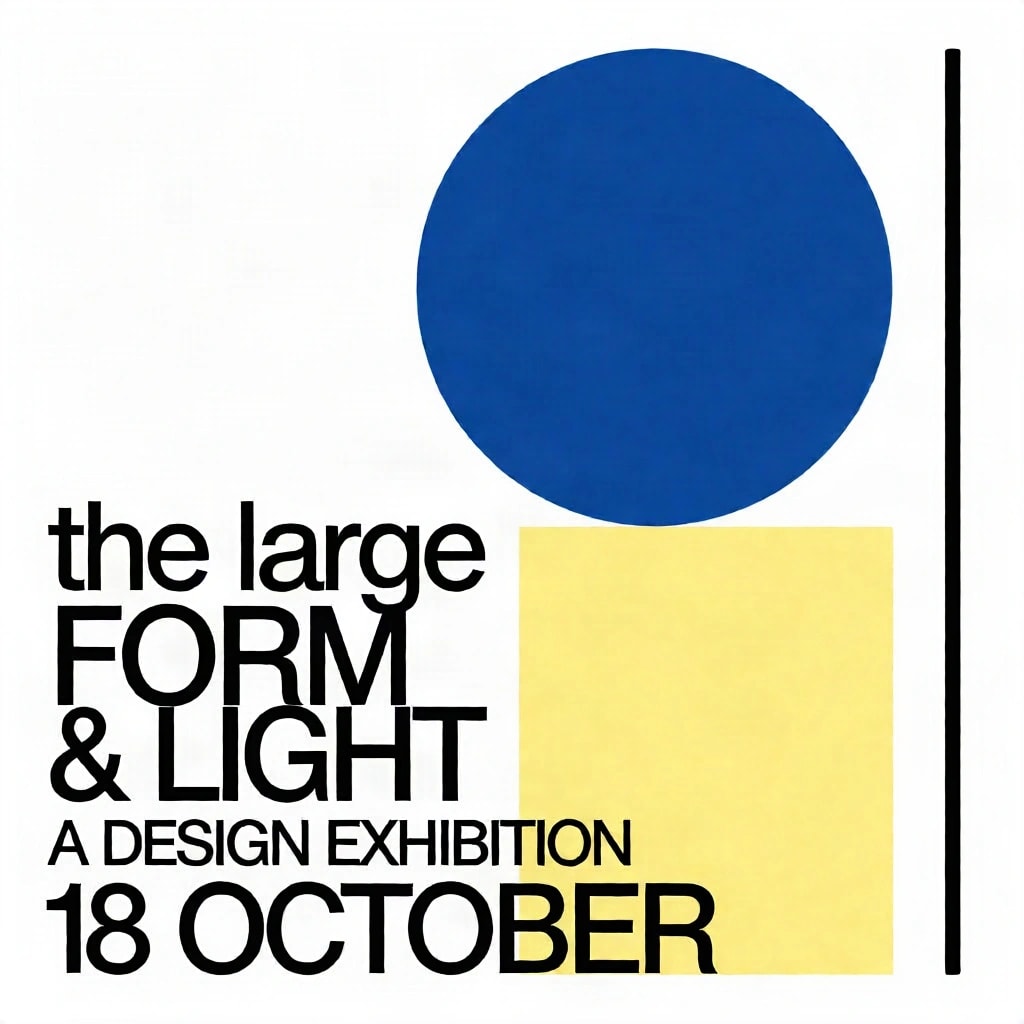
Krea 2 TurboOriginal (JPEG, 1024 × 1024)
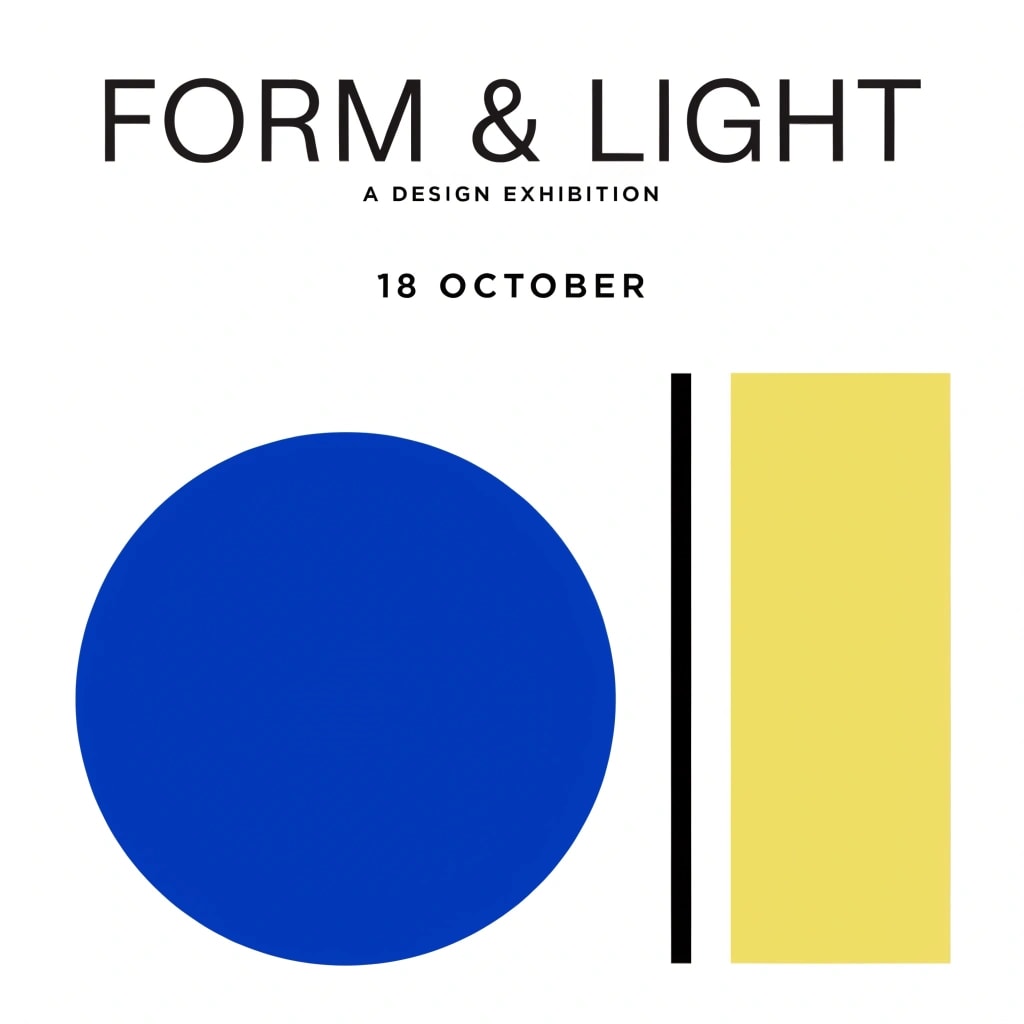
Recraft V4.1Original (WEBP, 1024 × 1024)
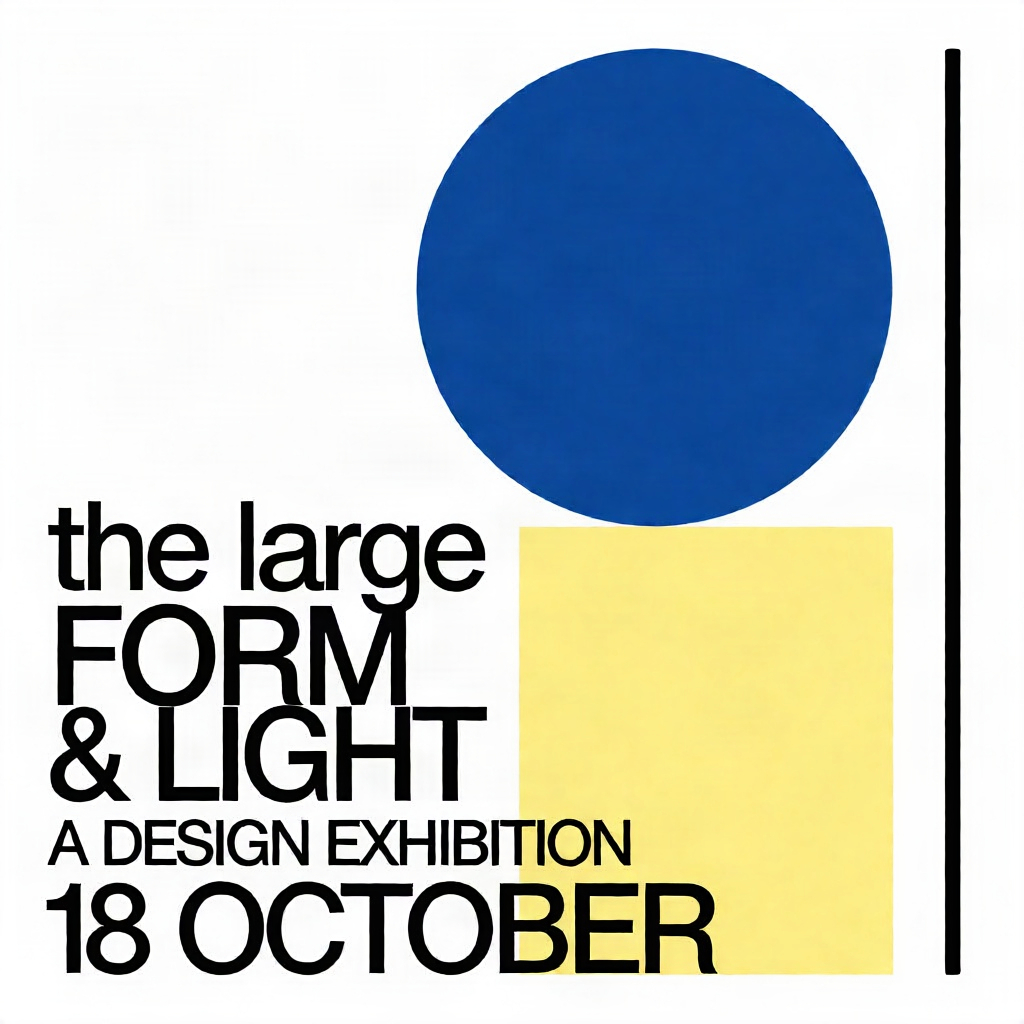
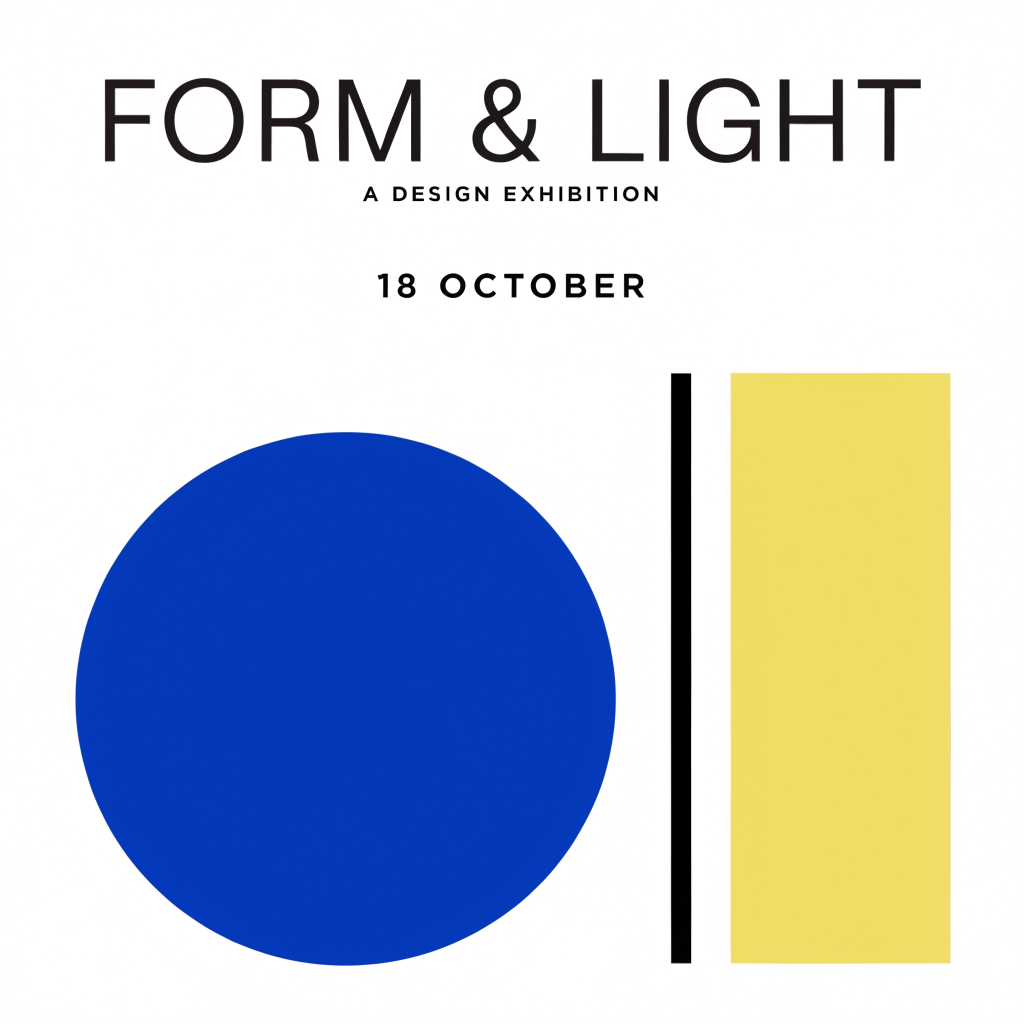
Between them, the three posters show the three common mistakes:
- Misspelling. FLUX Schnell turned “EXHIBITION” into “EXIHIBIITN”.
- Extra characters. It also added a full stop to the date: “18. OCTOBER”.
- Instructions printed as text. The prompt said the large title ‘FORM & LIGHT’. Krea 2 Turbo spelled everything correctly, but also printed “the large” above the title.
Recraft V4.1 got every word right. See all three tests in our FLUX Schnell, Krea 2 Turbo and Recraft V4.1 comparison.
Why it happens
An image model does not type letters. It draws shapes that look like letters, as part of the whole picture, and nothing checks the spelling afterwards. Nor does it always know which words in your prompt are the copy and which describe the design. In practice, short and common words come out right more often than long or unusual ones, and every extra word you ask for is another chance for a mistake.
How to word a prompt for text
1. Put only the exact words inside quotation marks
Keep descriptions such as “large” or “smaller line” in a separate sentence, away from the copy.
Instead of
Include exactly this text, spelled correctly: the large title ‘FORM & LIGHT’, the smaller line ‘A DESIGN EXHIBITION’, and the date ‘18 OCTOBER’.
Try
Three lines of text, exactly as written: “FORM & LIGHT”, “A DESIGN EXHIBITION”, “18 OCTOBER”. Set the first line much larger than the other two.
2. Ask for as little text as possible
A headline and one supporting line is plenty. Leave longer copy, such as dates, addresses or prices, for a text layer.
3. Say how many lines there are, and that there is nothing else
“Exactly three lines of text. No other words, logos or watermarks.” This will not stop every stray word, but it tells the model what the finished design should contain.
4. Describe the lettering, not just the words
“Bold condensed sans-serif, all capitals, black on white” gives the model a clearer target than “nice typography”.
5. Compare models on the same prompt
Models differ more on lettering than on almost anything else. Running one prompt on several models at once and keeping the one that spelled correctly is often quicker than rewording the prompt for one model.
6. Proofread at full size
Mistakes in small text are easy to miss in a preview. Open the original image, or use Detail zoom in Pickframe’s editor, and read every word.
When to add the text yourself
For anything that must be exactly right, such as a headline, a name, a date or a price, the reliable route is to generate the picture without text and add the words as an editable layer. In the prompt, ask for “no text, no lettering” and leave room for the words: “with empty space in the upper third for a headline”.
In Pickframe:
- Generate or upload your image, then choose Edit image.
- In Layers & colour, type your headline under Add your words, or choose Add text for a separate text layer.
- Choose a sans serif or serif font, then set the size, colour and position. Drag the layer on the canvas to place it. The 16:9, 1:1 and 9:16 formats each remember their own layout.
- Check the Export checks: they warn you if a layer crosses the canvas edge or the text is too tall.
The words are exactly what you typed, and you can change them at any time without generating again: edits in the editor are free. Save the layout as a recipe and the next image can reuse it.
Checklist
- Only the exact words are inside quotation marks.
- The prompt says how many lines there are, and nothing else.
- Long or exact copy goes in a text layer, not the prompt.
- You have compared more than one model on lettering.
- You have read every word at full size before exporting.
Next: turn one image into a thumbnail, square post and vertical cover with the same headline in every format.